
WordPress’s default maintenance screen — a plain, unstyled line of text telling visitors to check back in a minute — gets the job done but does nothing for brand trust. For sites running block themes, there’s a cleaner approach that keeps code minimal and hands design control to whoever manages the Site Editor. This guide shows you how to replace WordPress’s default maintenance screen with a fully branded block template controlled entirely from the Site Editor.
Prerequisites: You’ll need a block theme active, WordPress 6.0 or later, and access to your theme’s functions.php or a code snippets plugin. Before editing functions.php directly, back up your site or work on a staging environment — a PHP error in that file will take the site down. Using a code snippets plugin (such as WPCode) is a safer alternative for non-developers.
The setup divides responsibility sensibly. A developer adds a single filter hook to functions.php once and never touches it again. From that point on, the maintenance page is created, edited, and toggled entirely through the Site Editor’s template manager — no file access required for day-to-day use.
There are two versions of the hook depending on your site’s needs. The minimal version covers routine update windows, while an SEO-aware version adds response headers that protect your search rankings during longer outages. The SEO-friendly version sends three additional signals to search engine crawlers:
status_header( 503 )- Sends a “Service Unavailable” HTTP status so crawlers treat the downtime as temporary, not a permanent change.
Retry-After: 3600- Suggests crawlers check back in an hour rather than aggressively re-crawling or dropping the page.
nocache_headers()- Prevents CDNs and proxies from caching the maintenance response, so the live site appears immediately once maintenance ends.
Minimal hook
Add the following to your theme’s functions.php (or child theme’s functions.php — get_stylesheet() ensures child themes are handled correctly). This is a one-time task; once in place, no code changes are needed to manage maintenance mode.
/**
 * Serve the template titled "Maintenance" if the template exists.
 *
 * @param string $template The path to the template.
 * @return string The maintenance template path, or the original template.
 */
function your_theme_force_maintenance_template( $template ) {
	if ( is_user_logged_in() ) {
		return $template;
	}

	if ( ! current_theme_supports( 'block-templates' ) ) {
		return $template;
	}

	// Look for template(s) titled exactly "Maintenance".
	$maintenance_posts = get_posts( array(
		'post_type'      => 'wp_template',
		'title'          => 'Maintenance',
		'post_status'    => array( 'publish', 'draft' ),
		'posts_per_page' => -1,
		'no_found_rows'  => true,
	) );

	$maintenance_post = null;
	foreach ( $maintenance_posts as $post ) {
		$theme_slugs = wp_get_post_terms( $post->ID, 'wp_theme', array( 'fields' => 'names' ) );
		if ( in_array( get_stylesheet(), $theme_slugs, true ) ) {
			$maintenance_post = $post;
			break;
		}
	}

	if ( ! $maintenance_post ) {
		return $template;
	}

	$slug = $maintenance_post->post_name;
	return locate_block_template( $template, $slug, array( $slug ) );
}
add_filter( 'template_include', 'your_theme_force_maintenance_template', 99 );
SEO-friendly hook (with 503 headers)
If your site has meaningful search traffic or maintenance windows tend to run longer, use this version instead. It sends the three headers described above, but only when a maintenance template is actually being served:
/**
 * Serve the template titled "Maintenance" if the template exists.
 * Includes headers to signal temporary unavailability to search engines.
 *
 * @param string $template The path to the template.
 * @return string The maintenance template path, or the original template.
 */
function your_theme_force_maintenance_template( $template ) {
	if ( is_user_logged_in() ) {
		return $template;
	}

	if ( ! current_theme_supports( 'block-templates' ) ) {
		return $template;
	}

	// Look for template(s) titled exactly "Maintenance".
	$maintenance_posts = get_posts( array(
		'post_type'      => 'wp_template',
		'title'          => 'Maintenance',
		'post_status'    => array( 'publish', 'draft' ),
		'posts_per_page' => -1,
		'no_found_rows'  => true,
	) );

	$maintenance_post = null;
	foreach ( $maintenance_posts as $post ) {
		$theme_slugs = wp_get_post_terms( $post->ID, 'wp_theme', array( 'fields' => 'names' ) );
		if ( in_array( get_stylesheet(), $theme_slugs, true ) ) {
			$maintenance_post = $post;
			break;
		}
	}

	if ( ! $maintenance_post ) {
		return $template;
	}

	$slug = $maintenance_post->post_name;
	$maintenance_template = locate_block_template( $template, $slug, array( $slug ) );

	if ( ! empty( $maintenance_template ) ) {
		nocache_headers();
		status_header( 503 );
		header( 'Retry-After: 3600' );
		return $maintenance_template;
	}

	return $template;
}
add_filter( 'template_include', 'your_theme_force_maintenance_template', 99 );
Both versions of the hook use locate_block_template() to find the maintenance template. This function checks the database first, which means any template created in the Site Editor will be picked up automatically. The hook also checks current_theme_supports( 'block-templates' ) to ensure it only runs on block themes — this capability is declared automatically by block themes; you do not need to register it manually. The hook bypasses maintenance mode entirely for logged-in users so your team can review the live site during updates.
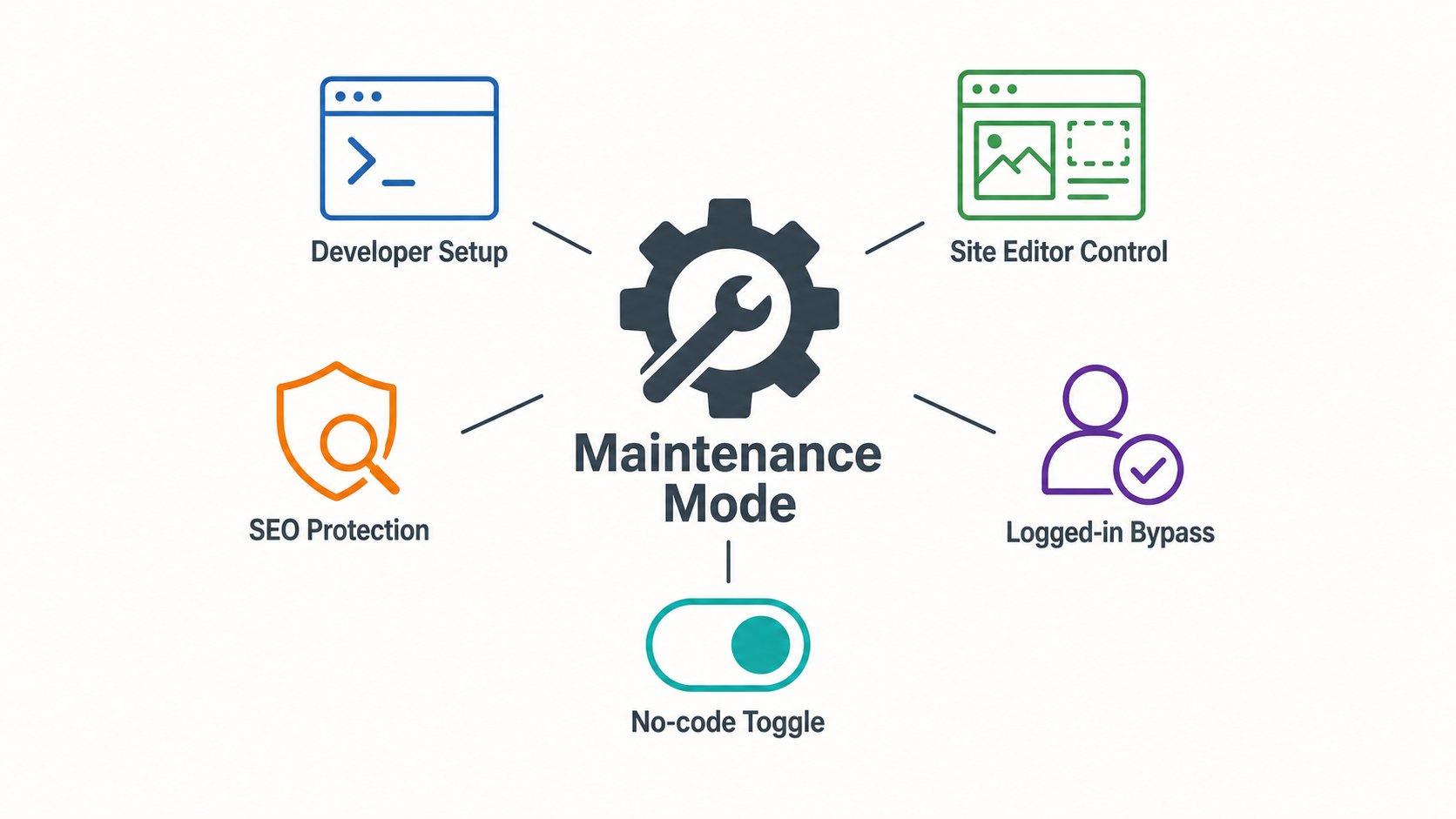
The hook is added to functions.php using the template_include filter at priority 99, which runs late enough to override other template decisions. Once in place, the hook looks for a wp_template post type with the title “Maintenance” that belongs to the active theme. Matching is done by checking the wp_theme taxonomy term against get_stylesheet(), so child themes are handled correctly.
To create the maintenance page, navigate to Appearance → Editor → Templates and add a new template named “Maintenance”. WordPress assigns it the slug maintenance, which is exactly what the hook queries for. Build the template like any other — it has full access to Global Styles, so your fonts, colours, and spacing carry through. You can include your header and footer template parts for the full site frame, or strip them back for a more focused message.
Activating and deactivating maintenance mode requires no code. Creating the template turns it on. To turn it off, go back to the Templates list and rename the template to anything other than “Maintenance” (so the hook no longer finds a match), or delete it entirely. The hook finds no matching template and falls back to normal routing. To test the setup, create the template, log out, and visit the front end. The maintenance page should load. Log back in and confirm the full site loads normally, then delete the template when you’re done.
The result is a maintenance workflow that scales well across teams: a developer configures the hook once during theme setup, and content or marketing teams own the branded page without ever needing to edit files or request a code deployment.